
Stop clicking reload.
Let the page do it.
Auto Refresh reloads any tab on a fixed or random interval, stops itself the moment something changes on the page, and pauses while you're typing. No accounts, no data collection, no network requests.
0 trackers·0 network requests·100% free·Open source
Why it's different
Not just a timer.
Most refresh extensions do one thing. Auto Refresh watches, waits, and knows when to leave you alone.
Fixed or random
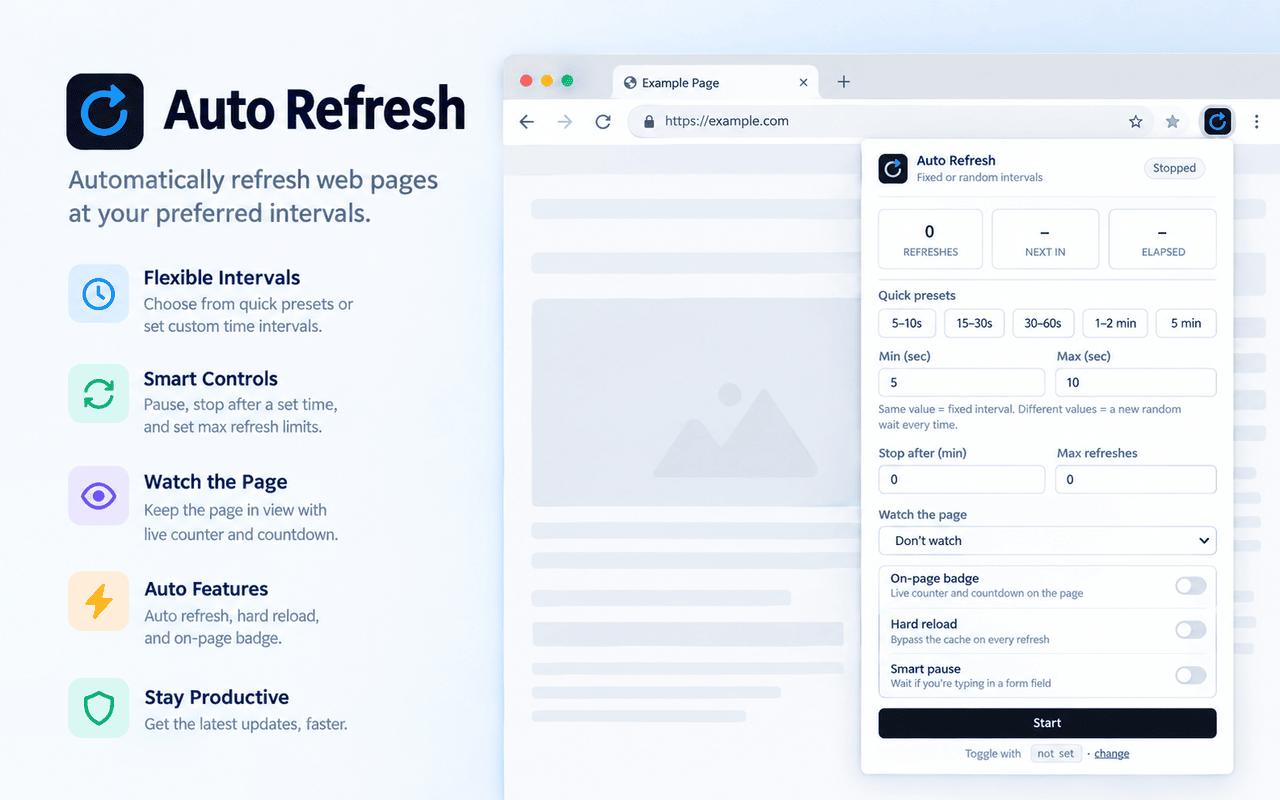
Set Min and Max to the same value for a steady beat, or apart for a new random wait every time.
Smart pause
Mid-sentence in a form when it's about to fire? Auto Refresh notices you're typing and waits, so you never lose your place.
Watch the page
Tell it what to look for — text appearing, disappearing, or any part of the page changing — and it stops and notifies you the moment it happens.
Stays out of the way
A small draggable counter on the page if you want it, a toolbar badge if you don't. Set limits by time or refresh count and it stops on its own.
How it works
Three steps. Ten seconds.
Open the tab
Go to the page you want refreshed, then click the Auto Refresh icon in your toolbar.
Pick an interval
Choose a quick preset or set your own Min and Max seconds. Optionally add a time limit, a refresh limit, or a watch rule.
Press Start
It refreshes right away, then keeps going on your schedule. Pause or stop from the popup or the on-page badge.
Shortcut: press Alt + Shift + R to start or stop with your last settings. You can change it in your browser's shortcut settings.
See it running
Set it once. Watch it work.
A real page, reloading on a random interval, with the on-page badge tracking every refresh.
- Live countdown to the next refresh
- Draggable, dismiss it any time
- Pause, resume, or stop without opening the popup
Page watching
Refresh until something actually happens.
Point it at the page — or a single CSS selector — and pick what counts as "done." It stops there, so you don't have to keep checking.
| Mode | Stops when | You provide |
|---|---|---|
| Text appears | The text becomes visible on the page | The text to look for |
| Text disappears | The text is no longer on the page | The text to look for |
| Content changes | The watched area differs from the first load | An optional CSS selector, e.g. #price |
FAQ
Good questions.
Does it collect or send any data?
No. Settings and per-tab state stay in your browser's extension storage. The extension makes no network requests and has no analytics or trackers. Page text is only read locally, and only when you turn on page watching.
Why does it need access to all sites?
The timer, on-page badge, and page watching run inside the page itself, so the extension needs to be able to load on any site you choose to refresh. Nothing refreshes until you press Start on a tab.
Does Smart Pause record what I type?
No. It only checks whether you're actively typing in a form field so it can hold off for a few seconds. What you type is never recorded, stored, or sent anywhere.
Why didn't it work on this tab?
Tabs opened before the extension was installed or updated need one manual reload. It also can't run on browser-internal pages (like chrome:// or about:), extension stores, or the built-in PDF viewer.
It stopped refreshing on a background tab.
Chrome's Memory Saver can discard inactive tabs, which stops refreshing. Exempt the tab in Chrome's performance settings. Background tabs may also have timers delayed by about a second.
Why did page watching miss something?
Watching checks the page about one second after each load, so content that renders later can be missed. For "content changes," use a CSS selector like #price so ads and timestamps don't trigger a false match.
Ready when you are.
Free. No sign-up. Takes about ten seconds to install.
Prefer to look first? Read the source on GitHub →